Breaking

Showing posts with label Phone Tips. Show all posts

Friday, 13 September 2019

September 13, 2019

Learn How To Download,Save,Customize And Create WhatsAapp Stickers

   The WhatsApp stickers which is launched for only Android and iOS users  has become a welcome development as users especially youths constantly constantly make use of this newly added feature, it should be noted that WhatsApp stickers pack was an awaited feature since its competitors such as Messenger, WeChat and others have been offering stickers packs for a long time now. 


For some users,Using this stickers may not be as easy as it sound, while to some downloading or creating more personalized sticker may be an issue . this post covers this area completely. 

How to Add and use stickers:


1. Open any individual chat or group.

2. When you find a sticker you wish to save,  Click on it. 

3.  Next, select Add to favorite 

4. To use stickers, <click on the emoji icon > Then click on the star icon (favorite) 

5.  All saved stickers would appear, now you can click any of the sticker you wish to send
Please note that once you tap the sticker, it'll send automatically.

To unfavorite or removing a sticker, lightly tap the sticker in your individual chat or group > REMOVE FROM FAVORITES. Alternatively, tap Emoji  > Stickers  > Favorites . Once you find the sticker you want to unfavorite, tap and hold the sticker, then tap REMOVE.

If you tap the heart box , it'll show a set of sticker category icons, where stickers are categorized based on the emoji displayed on the icons.

How To Download stickers

If you want more sticker options, tap Add . Scroll to the bottom of the ALL STICKERS tab and tap GET MORE STICKERS . This will take you to Google Play Store, where you can download sticker apps.
To view the sticker packs you've downloaded, tap Add  > MY STICKERS tab. If you want to delete a specific sticker pack, tap Delete  > DELETE. To reorder your sticker packs, tap and drag Reorder  next to a sticker pack.
When sticker packs need to be updated, tap Add  when a green dot appears. In the ALL STICKERS tab, tap UPDATE next to the sticker pack that needs to be updated. If prompted, tap UPDATE • {file size}.
A green check mark  will appear once the update is complete.
Stickers are available on our latest version of WhatsApp. If you don't see stickers, please make sure WhatsApp is updated. 

How To  Create WhatsApp Stickers


Creating your own personalized sticker is very easy, all you have to do is follow  the simple steps below  
Go to the Google Play StoreApp on your device, on the search bar,  search for ‘Sticker maker for WhatsApp’ app. Download the app and run it on your smartphone. 

Alternatively, click HERE  to directly take you to app download  menu,then follow the steps carefully. 

First,  select the “Create a new sticker pack” option. 


Enter the sticker pack’s name and author. 
Tap on the new list option and a page will open with empty stickers tray. 


First, add the stickers pack’s icon and then tap on the next tray to add a new customised sticker. 


Tap on the empty tray to add a new sticker and you will be asked to either take a new photo or import one from your gallery.
 
After you select the photo, it will be uploaded on an image editor. 


Next step is to Crop the image with your fingertip, based on what you need from that picture for a new sticker. 


Finally , save the image and repeat these steps to add more custom stickers to the pack. 


Once you are done with adding stickers to the pack, tap on the Publish Sticker Pack option. 


You will be asked to add these stickers to your WhatsApp app, accept and head to the WhatsApp app to enjoy these new custom stickers
September 13, 2019

All Whatsapp Problem Fixed


Whatsapp users are faced must  times with several issues, must times this results from various setup problem. The common problems are going to be  discussed in this post.

Installation Problem

This problem is caused majorly by the OS of a device, in this case there would be various ways to handle the problem based on the Operating system you are using.

  • The Android OS version is outdated


As we all know, the Android system decides the whole running of the device so if the system version you used is too old to support the WhatsApp program, it will unable to work well. Hence, you can go to check the software update of your device first:

For Android phone users, you need to navigate to Settings> About Phone to check whether there is a new update available.

If you are an iPhone users, you can visit Settings> General> Software Update to upgrade the system version.


  •   Storage space of the device is insufficient

WhatsApp generally requires large storage space before installation . Now before installing the application, you need to make sure that the usable storage space on your phone is adequate. If your phone storage is too small to carry the new application, you can delete the junk files or unwanted data on it to make some room. And if all the data on your phone are so important that you can select to sync them to computer or other devices to make a backup. Then you can clear them without any worry. After that, you can try again to install the WhatsApp and it may work this time

  • Fail to verify your WhatsApp account.                                                                                                                      As a requirement  to use your whatsApp convieniently, you need to verify your account beforehand. This simply means you have to enter a one-time security code when you log in the account. This would be easy to complete but you may fail to receive the verification code sometimes so you cannot the login to the App. So when you meet such a situation, you can tap on the option Call me on the interface to get a call from WhatsApp server. Then you will get the verification code and you can enter it to verify the account. Once the account is verified, it will be activated and the whole installation will be accomplished at this moment.


 2. Connection Problems

Whatsapp may install successfully but been faced with connection problems may result as a result  of the following ;


  • The network is unstable


Good network connections is always required to receive and send messages on whatsapp . Thus, to ensure the smooth use of WhatsApp, you need to build a stable connection between your phone and network. To inspect that, you can simply check the internet signal on your phone screen. If you find that the signal is weak, you can swipe down or up the screen to disable the Wi-fi or phone data connection and then turn it back on to solve the WhatsApp problem. This would be the easiest


  •  WhatsApp version is too old


The connection issue would be caused by the outdated WhatsApp version as well. updating the application regularly would go a long way to solving this problem. To up the App, you can go to the App or Play Store and enter the Updates section to check if any update available. If there is, just look for the WhatsApp option and click on it to complete the upgrade

3. Contacts Issues 

Here are contact related problem faced by whatsapp users.


  •  Cannot find all the contacts in WhatsApp

While using the application users may not be able to find any contact in their WhatsApp, This is commonly caused by the Show all contacts feature . If you turn off this feature on WhatsApp, you will be unable to find any contact in it. To solve this problem, you can go to WhatsApp> Settings> Contacts and find out the feature Show all contacts. Once you find it, you can tap on it to enable it and then go back to the main interface to check whether you can see the contacts list now.


  •  The newly added contacts do not show in the App


Another situation is that users can see some contacts in the WhatsApp contacts list but cannot find the newly added contacts. This is a common issue cause sometimes the application may not be able to refresh the account timely. So in this case, you need to refresh your WhatsApp account manually. You can complete that by selecting Options on the interface and then tap on Refresh option. After that, you need to wait for a while and then search the wanted contacts again.


 4. Messages Problems
 
Communication on whatsapp is done by transferring message from one user to another,  users faced with massage are the most affected in all. 


  •  Unable to send or receive messages


Do the following

Restart your device: Exit the WhatsApp and then hold down the Power button until you see the Power off option on the screen. Then tap on it to power off the phone. After a few minutes, you can press down the Power key once again to reboot it. Next, launch WhatsApp and try to send or receive messages on it. In most cases, this simple way works well.

Remove and then reinstall the App: Go to the Home screen of your device and find out the WhatsApp. Then long press the icon of WhatsApp until a "X" appears at the top left corner. Tap on the "X" icon and you can remove the App from your phone easily. After that, you can go to the Google Play Store or App Store to download the latest WhatsApp version and follow theh instructions to install it.

 Reconnect the network: The most direct way is to swipe up or down the screen to enter the notification bar on your device. Next, find out the Wi-fi or cellular data icon on the screen. Then you can tap on the icon and then click on it again to reconnect the network.


  •  Incoming messages delayed


Users normally receive messages such as this: message is taking time to load. This would make you loss important messages especially if you belong to whatsapp groups. So it is essential to settle this issue. To achieve this goal, you can:

* Disable Restrict background data: Navigate to Settings> Data usage> WhatsApp data usage and uncheck the Restrict background data option.

disable restrict background data

* Reset app preferences: You need to enter the Settings App and select Apps in this folder. Then tap on Menu button and choose Reset app preferences option.

5. Crash Problem

WhatsApp crashing would be the most serious issue but you can try to solve it by some simple means also:

* Uninstall and then reinstall the WhatsApp.

* Disable Facebook Sync: Click on Settings> Facebook> Contacts to switch off this feature.

Wednesday, 21 August 2019

August 21, 2019

Running Out Of Storage Space? Here's What To Do.


It's a common thing to run out of storage for all smart phone users, even when you have a very large memory space,apps, photos, videos, and mysterious "Misc" data can hog up all the storage on your device, preventing you from installing more apps or taking more pictures.

What's Taking up All Your Space?

Getting notifications of your device running out of space is not the end of the road for you, it's a common experience with the average smartphone users. (If it makes you feel any better, it happens to iPhone users too.) Over time, hard drive space slowly but surely gets eaten up not just by the apps you install , but by the cached data those apps store on your phone.
To see how your storage is being used up, go to Settings then Storage on your device. From there, you'll be able to see how much available space is left on your internal, built-in storage.

Clear App Cache Data

Due to the advancement of Android version clearing of cache has become alot quicker and easier . Before Android 4.2, you had to go through each app individually to clear cached data, but now you can clear cached data for all apps simply by going to Settings and tapping Cached data, and tapping OK. This action erases saved preferences and history like places you've recently searched for in the Google Maps app, but it can not only free up space, it can also boost your apps' performance.

Delete Unwanted Photos and Videos

The highest consumer of space in smartphones happens to be Photos and video,Because of this, it makes sense to tackle these big files continuously,If you're automatically backing

Thursday, 1 August 2019

August 01, 2019

5 Top 5G Smartphones In 2019

Samsung Galaxy S10 5G

Samsung's first flagship 5G mobile phone, the Galaxy S10 5G, is powered by the Qualcomm Snapdragon X50 5G NR modem and has a 6.7-inch QHD+ Curved Dynamic AMOLED display.

It's equipped with a 4500mAh battery with wireless charging, 8 GB of RAM, and 512 GB internal storage.

The S10 5G phone has a 3D Depth camera for augmented reality and Live Video Focus. There are four rear cameras (two 12MP, 16MP, and TOF) and two front-facing cameras (10MP and TOF).

Release date: The Samsung Galaxy S10 5G launched through Korean carriers on April 5, Verizon May 16, Deutsche Telekom July 3, EE and Vodafone on June 7, Swisscom in July, and is coming to AT&T, Spectrum Mobile, Sprint, T-Mobile, Xfinity Mobile in the summer or spring of 2019; O2 August 8; and Telstra.

Price: $1,300 USD

Samsung Galaxy Fold


Samsung will also release two Galaxy Fold phones: one for 4G LTE networks and one made specifically for 5G.

As the name would suggest, this phone has two displays. The front screen is a 4.6-inch HD+ Super AMOLED display, while the unfolded, larger screen, is a 7.3-inch QXGA+ Dynamic AMOLED display.

The camera on the cover of the device is 10MP. There are also dual front-facing cameras (10MP and 8MP) and a triple-camera setup on the back when the phone is unfolded (12MP telephoto, 12MP wide-angle, and 16MP ultra-wide).

Here are some other details on this Samsung 5G phone: 4380mAh battery, wireless charging, 12 GB of RAM, and 512 GB of storage with no microSD slot.


Price: $2,000 USD

ZTE Axon 10 pro


The newest member of the ZTE Axon smartphone series is the 10 Pro 5G. It's powered by the Snapdragon 855 processor and X50 5G modem, and works on not only 5G networks but also 4G, 3G, and 2G networks.

The Axon 10 Pro has a revolutionary slot antenna and adjustable antenna design to automatically know how you're using it to give you the best signal possible, while at the same time minimizing any potential damage due to electromagnetic radiation.

The ZTE 5G phone includes a triple-camera setup on the back, a 20MP front-facing camera, an in-display fingerprint sensor, and an AI performance engine to help with multitasking, motion capture, portrait lighting adjustments, and scene recognition.

This 5G phone has a 6.47-inch AMOLED display, 128-256 GB of internal storage, 6-8 GB of RAM, a 4000mAh battery with wireless charging, and a 48MP rear camera with a 20MP front-facing camera.

Release date: ZTE's 5G phone launched in China on May 6, is available in the UAE through Etisalat, and is expected to be available through carriers like China Unicom, Elisa, and Hutchison Drei Austria

Price: From around $470 USD up to $620 USD

Huawei Mate 20 X 5G


Mate 20 X 5G is another 5G phone from Huawei that's an upgraded version of the Huawei Mate 20 X, only with 5G capabilities. Unlike Huawei's foldable 5G phone, this one has a regular screen, so it's not quite as expensive.

The Mate 20 X 5G phone has a 7.2-inch display, 4200mAh battery, triple camera setup on the back, and uses the Huawei Balong 5000 7nm 5G chipset.

Release date: Launched in Switzerland May 2019 through Sunrise; available in Qatar and Italy via Vodafone, and the UK through Sky Mobile and Three; coming to China August 16

Price: Around $1,000 USD

Xiaomi  MI Mix 3 5G


Mi MIX 3 5G is Xiaomi's first 5G phone. It's a variation of the Mi MIX 3 released in late 2018, but powered by the Snapdragon 855 Mobile Platform and X50 5G modem to achieve gigabit download speeds.

This phone uses the same 12MP AI dual camera from the Mi MIX 3, so it also has the same 960 fps slow-mo video. The front-facing camera on the Mi MIX 3 5G is 24MP and uses Sony's IMX576 sensor to help create detailed shots.

The Mi MIX 3 5G has a 6.39-inch, 2340x1080 resolution, FHD+ Samsung AMOLED display rested in a curved ceramic casing.

There's also a 3800mAh battery, dedicated Google Assistant button, and hybrid cooling system in the Mi MIX 3 5G.

Release date: This 5G smartphone from Xiaomi launched through Sunrise May 2, is available in Italy, works on Vodafone UK, is coming to the UK's O2 in August, and will most likely also launch from Three and other service providers

Price: $700–$850 USD


Wednesday, 24 July 2019

July 24, 2019

Check out Prices,Specs And Photos Of Affordable IPhones

Price List of  Affordable Apple iPhones And Spec

 Apple iPhone are among the most sorted out phones in developed countries, although  this device May be expensive users still go a long way to purchasing and maintaining  them.

In this post, we would give a quick review on among which are:
 Apple iPhone 5C  Apple iPhone 6, Apple iPhone 6 Plus,Apple IPhone 6s, Apple IPhone 6s Plus,Apple iPhone 7, Apple iPhone 7 Plus, Apple IPhone 8,Apple IPhone 8 Plus, Apple IPhone X

Apple iPhone Price in  (2019):
Latest iPhone Price
Apple iPhone 5C ₦ 39,990
Apple iPhone 6 4.7 inches, iOS 9, 16GB + 1GB, 8+1.2MP Camera, A8 Chipset ₦ 85,899
Apple iPhone 6 Plus ₦ 101,699
Apple IPhone 6s ₦ 118,699
Apple IPhone 6s Plus ₦ 138,699
Apple iPhone 7 128GB ₦ 256,000
Apple iPhone 7 Plus ₦ 309,599
Apple IPhone 8 ₦ 265,900
Apple IPhone 8 Plus ₦ 390,000
Apple IPhone X ₦ 409,000


Apple iPhone 5C


Price                             ₦ 39,990
OS                                 Apple iOS 7
Screen Size.           4.0 inches
Display Resolution 1136x640-pixels
Processor                    A6 Chip
GPU                               PowerVR
RAM                            1GB
Storage Space            16GB
Expansion Slot          None
Camera.                       8 megapixels
Selfie Camera           1.5 megapixels
Battery                       10 Hours Talk Time
Connectivity             3G
Pros                            Design, Price
Cons                           Size


Apple iPhone 6


Apple-IPhone-6-16GB-ROM-With-Finger-Sensor-Refurbished-Origin-GRAY

Price                                 ₦ 85,899
OS                                     Apple iOS 8
Screen Size                     4.7 inches
Display Resolution        1334 x 750 pixels
Processor                        Dual core 1.4 GHz Apple                                                    A8 chipset
GPU                                  PowerVR GX6450
RAM                                1GB
Storage Space                16/32/64GB
Expansion Slot              Na
Camera                           8 megapixels
Selfie Camera                1.2 megapixels
Battery                            1810mAh
Connectivity                  4G
Pros                                 Design, Price, Performance
Cons                                NA

Apple iPhone 6 Plus


Price                              ₦ 101,699
OS                                   Apple iOS 8
Screen Size                   5.5 inches
Display Resolution     1920 x 1080 pixels
Processor                     Dual core 1.4 GHz Apple A8                                              chipset
GPU                               PowerVR GX6450
RAM                              1GB
Storage Space             16/32/64GB
Expansion Slot           Na
Camera .                       8 megapixels
Selfie Camera             1.2 megapixels
Battery                         2915mAh
Connectivity               4G
Pros                              Camera Quality, Design,                                                   Price, Performance
Cons                             NA

Apple IPhone 6s

Price                                  ₦ 118,699
OS                                      Apple iOS 9
Screen Size.                      4.7 inches
Display Resolution        750 x 1334 pixels
Processor                        Apple A9 Chipset
                                          GPU PowerVR
RAM                                2GB
Storage Space                16*/32/64/128GB
Expansion Slot             None
Rear Camera                 12 megapixels
Selfie Camera                5 megapixels
Battery                           1715mAh
Connectivity                  4G
Pros                                Performance, Price, Quality
Cons                                None

Apple IPhone 6s Plus


Price                              ₦ 138,699
OS                                   Apple iOS 9
Screen Size.                  5.5 inches
Display Resolution.     750 x 1334 pixels
Processor                     Apple A9 Chipset
GPU                               PowerVR
RAM                              2GB
Storage Space              16*/32/64/128GB
Expansion Slot            None
Camera                         12 megapixels
Selfie Camera              5 megapixels
Battery                         2750mAh
Connectivity                4G
Pros                               Performance, Price, Quality
Cons                              None

Apple iPhone 7


Price                           ₦ 256,000
OS                                  Apple iOS 10
Screen Size                  4.7 inches
Display Resolution     1080 x 1920 pixels
Processor                     Apple A10
GPU                                A10
RAM                              2GB
Storage Space             128GB
Expansion Slot          None
Camera                       12 megapixels
Selfie Camera            7 megapixels
Battery                        20 Hours
Connectivity              4G
Pros                             Premium Design, Quality                                                 Cameras, Good Display
Cons                           NA


Apple iPhone 7 Plus

Apple-IPhone-7-Plus-128GB-ROM-Refurbished-Origin-With-Finger-Sensor-ROSE-GOLD

Price.                ₦ 309,599
OS.                    Apple iOS 10
Screen Size.     4.7 inches
Display Resolution 1080 x 1920 pixels
Processor .                        Apple A10
GPU A10
RAM 3GB
Storage Space.                 128GB
Expansion Slot.               None
Camera.                           12 megapixels
Selfie Camera .               7 megapixels
Battery.                            25 Hours
Connectivity.                  4G
Pros Premium Design, Good                                                      Display
Cons NA

Apple IPhone 8

Price .                        ₦ 265,900
OS Apple iOS 11
Screen Size 4.7 inches
Display Resolution 1334 X 750-pixels
Processor.                    A11 Bionic Chip
GPU.                              A11
RAM.                             2GB
Storage Space.            64GB
Expansion Slot No
Camera 12 megapixels
Selfie Camera.             7 megapixels
Battery.                         NA
Connectivity.                4G
Pros.                              Camera quality, Compact,                                                 premium design, performance
Cons None

Apple IPhone 8 Plus


Apple-IPhone-8-Plus-(256GB-ROM-3GB-RAM)-5-5-Inches-HD,-IOS-11,-12MP-+-7MP-Smartphone-Space-Grey

Price                              ₦ 390,000
OS                                  Apple iOS 11
Screen Size                   5.5 inches
Display Resolution 1920 x 1080 pixels
Processor                    Apple A11 Bionic Hexa-core
GPU                              Bionic Chip
RAM                             3GB
Storage Space             256GB
Expansion Slot           No
Camera.                  12 megapixels
Selfie Camera            7 megapixels
Battery .      NA
Connectivity              4G
Pros                             Design, Performance, Camera, Quality
Cons                            NA

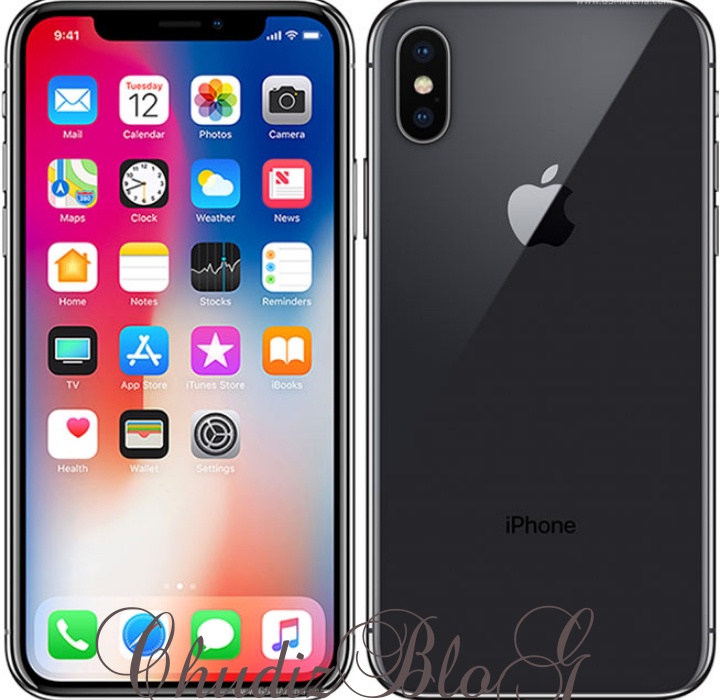
Apple IPhone X


Apple-IPhone-X-5-8-Inch-HD-(3GB,256GB-ROM)-IOS-11,-12MP-+-7MP-4G-Smartphone-Space-Grey

Price                             ₦ 409,000
OS                                 Apple iOS 11
Screen Size                 5.8 inches
Display Resolution.    2436 * 1125 pixels
Processor                     1.3GHz quad-core
GPU                               Mali
RAM                              3GB
Storage Space             256GB
Expansion Slot           None
Main Camera             12 megapixels
Selfie Camera              7 megapixels
Battery                          21 hours
Connectivity              4G

Pros                              Design, Performance, Camera                                         Quality, Display
Cons.                             Pricing


Monday, 15 July 2019

July 15, 2019

6 Maintance Hack To Make Your Phone Last Longer


The importance of Cell phones to humans can't be overemphasized, this is more reason why every grown-up has either one or more mobile phones. Purchasing a smartphone isn't just the end of the road,careful maintance has to be taken seriously because cell phones can be a pretty hefty investment, which is why it’s important to keep them in the best condition possible to ensure they last long.

 Not many people have the means to go out and buy a new phone to replace a broken phone, especially if the phone isn’t insured.
Let get a quick review on Tips To Make Your Smartphone Last Longer :

  •     Protect the exterior of your phone with a Quality case
  •     Purchase a screen protector to keep dust, dirt and scratches away from your screen
  •     Always Keep Clean
  •     Avoid  keeping your phone away from abrasive surfaces or materials, like beach sand
  •     Unless your phone is waterproof or water-resistant, or you have a protective case then   keep it far away from moisture and water
  •     Don’t use chemicals of any kind to clean the exterior of your device or its display
  •    Always keep away from children (use simple patterns)


1. Purchase A Quality Case


   "Imagine a soldier in a warfront without a complete shield" his disaster is just few miles away because any thing can happen. This scenario can be link to a phone without a case or screen protector, because accidents care not  planned for and anything can happen.

    One of the best ways to keep your phone in a safe State is to buy a good case for it. A good case will have the impact-absorbing technology to provide ample protection.
    It’s important to make sure the case is designed specifically for your type of phone to ensure it fits snugly. A case with a screen protector is a must because screens are fragile and often shatter with impact. Before getting any case, always make sure it has a comfortable grip design and a slim and sleek profile, such as BodyGuardz iPhone 6 cases.

2. Always Keep Clean

While using our phones we unknownly  expose them to tons of fingerprints and oils, not to mention all the other germs your phone comes into contact with each day. Overall, cell phones can get pretty dirty. Dirt and debris can clutter in speaker holes and indents. Oils can build up in the seams or cracks, this whole process repeatedly occurs.
It's a common advice that you are not supposed to use water or chemicals to clean your device. So what then should I use? I once asked my self that question, let's go further to answer this question.

Use a microfiber cloth or compressed air to clean phone impurities

 Using a fine or soft microfiber cloth to wipe impurities from the screen is a sure way out to clean out those crevices and seams, you can also use compressed air.

3. Avoid Bad Battery Maintance Practice

    Most smartphones comes with a promising Batterie life from  manufacturer,but at some point in time this seems to appear like a scam, as battery begins to drain down very fast, this occures as a result of bad practices from users and no longer from the manufacturer.

   Constantly charging your phone is bad for the battery, so a good tip is to let your battery get to 10% - 20% before charging it.

   Also,Charging it too long or over the night is also a way to make the battery begin to degrade, so make sure you take it off the charger when it hits 100% or even before then. Letting your battery drop to 0% is also not a good idea because it causes the battery to become unstable.

Read More Battery Maintance Tips

4. Keep Your Phone at the Right Temperature


   Smartphones developers encourage user to use phones at moderate temperature conditions.  Some users live in an extreme climate where temperatures change frequently and might want to figure out a way to keep their phone conservatively tempered.

    One of the sure way out is to keep your phone at close to or around room temperature. Any warmer and you may experience hang-ups, freezes or overheating. If you let it get too cold, it can harm the rechargeable battery inside your phone. Cold temperatures leech the power and energy out of batteries.

    How about phone's that gets hot within seconds of use? One of the best ways to handle such device is to always turn off Data connection and allow it cold off, changing the battery may help help but if case's becomes worse we advice you take it back to where you purchased it to advoid further damages.

5. Regularly Delete Apps and Content You Don’t Need


    Some users are yet to answer the question of Why they have some types of app on their phones which they don't use. Most times the answer is always For future use, amazing the future never comes.

     The more files and apps you have installed, the more sluggish your device is going to be. Over time, all that junk can cause performance issues which slows down your device considerably.

There are a couple of things you can do to fix this:


For starters, remove any and all content you don’t need. If you have too many apps, start getting rid of the ones you never use. Some tools will provide recommendations for apps to remove.

For users who's phone is full of photos or videos,  uploading them to a personal cloud storage service like Google Drive, Apple iCloud or Dropbox could save you alot. Then simply remove the local content from your device. Most of these services have mobile apps that you can use to browse your stored content from anywhere. You won’t lose access to your photos and videos and yet you have tons more space on your phone.

Unknown to some user,some apps build up large caches of data – the Facebook app is a great example – and it’s beneficial to either clear this data or uninstall and reinstall the app completely. For Android user,  navigate to Settings > Storage and tap the ‘Cached Data’ option to get the prompt to clear it. On iOS, you can simply uninstall the app and reinstall. Either way, pretty simple.


6. General

   Look, sometimes mistakes happen, and you drop your phone, or it slips out of your hand. Hopefully, it doesn’t land on a hard surface, or in a way that it cracks or breaks. Using a durable phone case can help protect your phone if this happens.

    There are certain things you never want to do with your phone that put it at risk. That’s why it’s important you handle your expensive device with care. Proper care of a cell phone includes keeping it away from water or liquid in general unless you’re one of the lucky few who has a water-repellent or waterproof device. Still, you’ll want to keep your phone away from deep or murky water, because if you drop it in a lake, for instance, it’s going to be tough to recover.

  Keep it dry. If it’s raining or you’re sweating profusely, store the phone in a way that it won’t come into contact with moisture. If you cannot prevent moisture from getting to the phone, it’s best to leave it out of harm’s way. Yes, in some cases that might mean leaving it at home or inside.

   When you are handling the phone, be sure to keep a tight grip, so you don’t drop it. You can always purchase a lanyard to wrap around your wrist in the event it falls. Some phones – although not all – include a clip that can be used to wrap the lanyard around.

   If you’re handing the phone to someone, never toss it and be sure the other person has a good grip before letting go.


Sunday, 14 July 2019

July 14, 2019

How To Recover Files From Damaged Smartphones

      Generally, our Smartphones get bad at some point in time, this may occur as a result of our careless or by accident. However phone shows
signs and some goes bad as a result of being overly used.

   Let's imagine a scenario were by your smartphone accidentally falls on
the ground or from a high table and the phone's display screen is
cracked or it's just showing a blank white/black
color or if the phone refuse to come on due to virus
attack or someother factors. How do you get the
important files on the phone? You can restore all
your precious photo, videos, documents and audio,but this might be a bit stressful.

   Although the method which we would explain here can only work
for Samsung phones, subsequently we would explain other method for other Android device.

    WonderShare Dr.fone is a application available to enable victims of damaged phones,  recover all the data on the damaged their smartphones, again this app doesn't recover damaged applications.

▪Features of WonderShare Dr.fone

1. It can help you fix your damaged phone
2. It can help you extract your data from the
damaged phones.

     This application can only recover data from
Samsung phone that have broken screen, shows blank color
on the screen, not responding or forgotten
password.

Follow this procedures to recover your files.

1. Download and install WonderShare Dr.fone
2. Connect your damaged phone to your computer
3. Launch app (Wondershare Dr.fone)
4. Click on Data Extraction(Damaged Device)
5. Select the type of files you want to recover and
click on Next
6. Select the problem that matches your phone
state
7. Select your device name and model, click on
next
8. Manually type Confirm in the box to confirm your
device model
9. follow the guides
Switch off your device
Press and hold the volume down +
home button + power button.
Press the volume up to enter
download mode
WonderShare Dr.fone will automatically extract data
from the damaged Samsung device.
WonderShare Dr.fone can only extract data that are
on the device, it cannot extract deleted data.


Other Andriod Device

    For Android users, we will demonstrate couple of methods that will help you to recover as much data as it can.100% data recovery is not guaranteed since it really depends on how badly the phone was damaged. But even if the phone is beyond recovery then also it is possible to restore a fair amount of data from Android phone. So let's hop in and see if we can recover data from broken phone.
 Recover Lost Data from Broken Android using USB Cable
Step 1: Carefully, attach your USB data cable with your Android Smartphone and connect it to your PC.

Step 2 : Wait until your PC installs necessary drivers and show your smartphone as a new driver.

Step 3 : Open My Computer and find the name of your Android smartphone.

connect Android to PC

Step 4 : Double click on your smartphone name and here you can find all the multimedia files and documents are stored in your internal and external memory.

Step 5 : Select all the items that you want to restore and copy them. Now go to your computer driver and paste the file in your desired location.

  However, this method can only recover multimedia and documents files. Text messages, contacts, notes, call logs, can't be retrieved using this method.

Monday, 8 July 2019

July 08, 2019

Best 7 Things To Do Immediately Your Phone Falls Into Liquid


Once in a life time every smartphones  users may experience this mishap, incase you have or yet to experience this,just have it in mind that its not the end of the world.Our readers are reminded that the first action they  take within the first 20 minutes really matters alot .Here  is a list of steps to take immediately your device submerges into a liquid.

Things You Need

1 A Dried Towel
2 Silical Gel Pack
3 Rice
4 Ziploc bag or any airtight container
5 Time, Patience And Speed ( Very Important)

Step 1 - Turn Off Device Immediately

 Depending on what ever device you are using,be it a removable or non removable battery your device should be turned off immediately using either the shut down menu or by removing the battery directly.
 For iPhone users, hold the power button for around 5 seconds and turn off the device. Do not attempt to "force shut off" your device by holding the power button for more than 10 second because your device will automatically restart immediatly after shutting down which may do more damage to your device.

Step 2 - Disassemble Your Device

 After confirming the your device has completely shut down, Carefully disassemble everything that's assembled to it without applying force. This includes;

  • Sim card
  • Memory card
  • Phone Case
  • Battery ( if removable)
  • Any other connected accessories

Step 3 - Place Device Vertically ( Screen Facing Up)

 This majorly goes a long way in protecting your screen, have you ever seen a phone screen that appears as if their were liquid in it? this process was skipped after an incident like this occurred.so don't make such mistake.
 Carefully make sure you place your device SCREEN upward through out this whole process. As this will prevent more liquid from entering the screen or residing in it.

Step 4 - Dry Carefully With Towel

 The liquid in you device would have to be dried first, as this would make the next step very effective. In doing this, rap your device around a towel and hold it firmly, then shake it up and down as many times as you can to get more liquid out of it components.

Step 5 - Applying You Drying Agents

The drying agents required are :

1)Silical Gel Pack - Silical gels have been recorded over time to work more effectively, are they are know to absorb all humidity from the core of smartphones and also works more faster.All you have to do is to get as many Silical gel as possible to cover your phone completely from all side's in a thick layer.
                          Photo Of Silical Gel
2) A dip bowl of rice -  inserting a drenched phone into a bowl of rice works like magic, as it absorbs humidity from your phone but this does not work as effectively as Silicon gel.

Step 6 - Place Device And Drying Agent Into An Airtight Bag Or Container

After applying either silicon or rice, now placing it into a Ziploc bag or any airtight container is what you need to do.All you are required to do is make sure it's free of air and keep it safe in an Area were no one can reach easily.

Step 7 - Wait For 48 hours
Patience as know is a virtue, this virtue has to be appied here.but if you don't have this,my friend your phone may go in for it. In this 48 hours don't attempt to put on your phone as this my lead to short circuit.

Things To Remember

 Your phone must be kept upwarding at all times.
 Don't ever turn on your phone.
 Be Patient.